
Klasses
Learn how to design and configure Klasses, attributes, and Klass records for Kustomer apps.
Klasses define schemas for data objects including custom objects (or KObjects) in the Kustomer platform.
A Kustomer app can create and configure custom Klasses to represent external domain objects such as e-commerce orders, survey results, or external customer interactions.
Add the klasses property to your app definition to have the app configure a custom Klass or multiple custom Klasses.
Use Klasses when you need to model repeated, structured records that agents, workflows, and tools can use in Kustomer.
Configure custom attributes for standard Klasses
To configure custom properties, or custom attributes, for the standard Company, Conversation, Customer, or Message klass, see Standard Klass Properties.
How Klasses, attributes, and tools fit together
Klasses define the shape of object data in Kustomer. Attributes define the fields on those objects. Klass records, or KObjects, are the individual records created from a Klass.
Use this model when you design how external data will appear and be used in Kustomer:
External data → Klass → Attributes → Klass records (KObjects)
                         ↓
                    Used by:
                    - Tools
                    - Workflows
                    - Agent UI through Klass Views
For example, an e-commerce integration can define an ecomm-order Klass with attributes such as orderStatusStr, totalPriceNum, and permalinkUrl. Each order becomes a Klass record. A tool can use that order data, and a Klass View can display the order on the agent timeline.
Choose a Klass or a custom attribute
Use a custom attribute when you need to store a small amount of metadata on an existing object. Use a custom Klass when you need to represent a separate real-world object with multiple fields or multiple records.
| If you need to store... | Use... |
|---|---|
| One value on a customer profile | A Customer custom attribute |
| One value on a conversation | A Conversation custom attribute |
| Simple metadata on a standard object | A custom attribute on a standard Klass |
| Many related records, such as orders, shipments, bookings, or tickets | A custom Klass |
| A structured object with several fields | A custom Klass |
| Data that tools or Klass Views need to retrieve as records | A custom Klass |
For custom attributes on standard objects such as Company, Conversation, Customer, or Message, see Standard Klass Properties.
Plan how agents and tools will use Klass data
Before you define a Klass, decide how the data should support the agent workflow. A Klass design is easier to use when its fields match the way agents search, review, and act on customer data.
For the ecomm-order example, plan for these usage paths:
- Create the
ecomm-orderKlass. - Add order attributes such as
orderIdNum,orderStatusStr,totalPriceNum, andpermalinkUrl. - Create Klass records for individual orders.
- Use a tool to retrieve or act on order data. See Creating Tools Using Klass Data.
- Use a Klass View to show the order data to agents on the timeline.
Klass records can appear to agents through Klass Views. Attributes become fields on the rendered view, so choose names and display names that make sense to both developers and agents.
Klasses format in the app definition
The klasses property takes an array of objects that define the following properties for each custom Klass: a unique Klass name, display icon, icon color, attributes, and attributes metadata such as display names and attribute data type.
After an app configures Klasses for a Kustomer organization, anyone with Administrator permissions can access and modify the icon, icon color, attribute activation, and attribute display names in Kustomer.
** klasses definition example**
The following sample JSON app definition includes a klasses property definition that creates a custom ecomm-order Klass in Kustomer.
{
  "app": "ecomm",
  "version": "0.0.1",
  "title": "E-comm",
  "klasses": [
    {
      "name": "ecomm-order",
      "icon": "basket",
      "color": "#64943E",
      "metadata": {
        "properties": {
          "orderIdNum": {
            "displayName": "Order Id"
          },
          "orderStatusStr": {
            "displayName": "Order Status"
          },
          "orderCreatedAt": {
            "displayName": "Order Created"
          },
          "orderDescriptionTxt": {
            "displayName": "Description"
          },
          "isCanceledBool": {
            "displayName": "Is Canceled"
          },
          "permalinkUrl": {
            "displayName": "Permalink"
          },
          "totalPriceNum": {
            "displayName": "Total Price"
          },
          "shippingAddressStr": {
            "displayName": "Shipping Address"
          }
        }
      }
    }
  ]
}
Data modeling best practices
Use these guidelines when defining custom Klasses and attributes:
- Model real-world objects as Klasses. For example, use a custom Klass for orders, shipments, bookings, survey responses, or external tickets.
- Use custom attributes for simple metadata on an existing customer, conversation, company, or message.
- Avoid duplicating the same value across customer attributes and Klass attributes unless each copy supports a different workflow.
- Use consistent camelCase attribute system names with the correct type suffix, such as
orderStatusStrortotalPriceNum. - Choose fields that tools, workflows, and Klass Views will need to query or display.
- Prefix custom Klass names with your app name, such as
ecomm-order, to keep names unique across app versions.
Troubleshooting
Use this section to diagnose common Klass and attribute issues.
| Issue | What to check |
|---|---|
| Attribute does not appear in Kustomer | Confirm the attribute is defined under metadata.properties and that an Administrator has activated it if activation is required in the UI. |
| Tool does not return the expected data | Confirm the tool uses the attribute system name, such as orderStatusStr, not the display name, such as Order Status. |
| Data appears on the wrong object type | If you are configuring a standard Klass, use the standard Klass configuration pattern described in Standard Klass Properties. |
| Agents cannot understand the data shown in the UI | Review displayName values and the related Klass View so the fields match agent-facing terminology. |
Next steps
After you define a custom Klass:
- Add custom attributes to standard Klasses when you only need metadata on existing objects. See Standard Klass Properties.
- Display Klass records on the agent timeline. See Klass Views.
- Build tools that retrieve or act on Klass data. See Creating Tools Using Klass Data.
** klasses definition examples in UI**
When installed, the app definition with the klasses property definition above configures a custom ecomm-order Klass in Kustomer.
Here are some screenshots of how the custom ecomm-order Klass and the defined attributes would appear in Kustomer under the Settings menu in Platform > Klasses:

The custom ecomm-order Klass as it appears in the Klasses page.
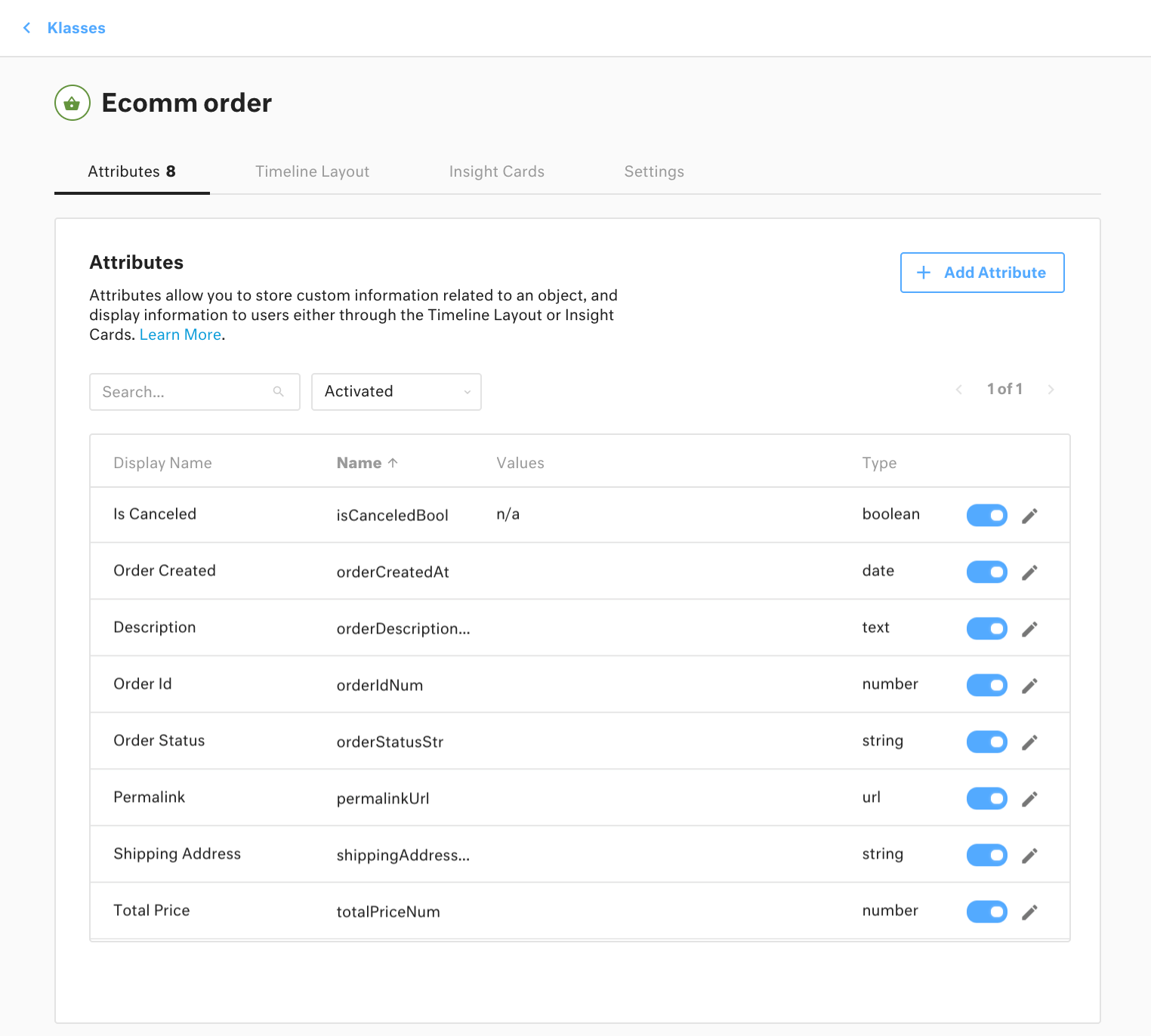
The custom ecomm-order Klass attribute names and display names as they appear in the ecomm-order Klass page.
Klasses property descriptions
The basic klasses definition properties and their descriptions are listed below:
name
Required. The unique name for the Klass. The name appears in the platform and should be descriptive, meaningful, and human-readable. We recommend prefixing your Klass names with <appname>- to ensure uniqueness.
Validation: Must be unique and the same for each app version. Must use alphanumeric characters, underscores (_), and hyphens (-) only.
Plan the Klass name and attribute system names carefully. Developers, tools, and APIs use system names, while agents usually see display names in the UI.
Example: "name": "ecomm-order"
icon
String lookup to an icon from the Material Design Icon Library. The string must correspond directly to the icon name on the website. For instance "basket", "account-outline", and "bank-outline" are all valid icon values. The icon appears in the platform and can be modified by users.
Example: "icon": "basket"
color
A valid CSS color value for the defined Klass icon. The icon color appears in the platform and can be modified by users.
Example: "color": "#64943E"
metadata.properties
Defines the various custom attributes and attribute properties of the custom Klass including attribute name, attribute data type, and attribute display name. Use camelCase.
The final characters of each property name describes the data type of the attribute. Each property takes a displayName property that defines how the attribute name appears in the platform. Both attribute property names and the displayName property appear in the platform, but only the display name can be modified by the user in the platform.
System names and display names serve different purposes. Use the system name, such as orderStatusStr, when referencing the attribute in app definitions, tools, or API-driven workflows. Use the display name, such as Order Status, to control how the attribute appears to users in Kustomer.
Numfor numbers- Example:
"orderIdNum": {"displayName": "Order Id"}
- Example:
Strfor short strings- Example:
"orderStatusStr": {"displayName": "Order Status"}
- Example:
Atfor dates- Example:
"orderCreatedAt": {"displayName": "Order Created"}
- Example:
Txtfor longer text- Example:
"orderDescriptionTxt": {"displayName": "Description"}
- Example:
Boolfor booleans- Example:
"isCanceledBool": {"displayName": "Is Canceled"}
- Example:
Urlfor urls- Example:
"permalinkUrl": {"displayName": "Permalink"}
- Example:
For additional attribute data types, see Define Attributes in Kustomer in the Kustomer Help Center.
Example of metadata.properties definition:
"metadata": {
  "properties": {
    "orderIdNum": {
      "displayName": "Order Id"
    },
    "orderStatusStr": {
      "displayName": "Order Status"
    },
    "orderCreatedAt": {
      "displayName": "Order Created"
    },
    "orderDescriptionTxt": {
      "displayName": "Description"
    },
    "isCanceledBool": {
      "displayName": "Is Canceled"
    },
    "permalinkUrl": {
      "displayName": "Permalink"
    },
    "totalPriceNum": {
      "displayName": "Total Price"
    },
    "shippingAddressStr": {
      "displayName": "Shipping Address"
    }
  }
}
Updated 5 months ago